13. Instructor's guide: coach mode and exercise settings
Translated from the Finnish manual (manual/fi); the Finnish text is authoritative.
Matches version: 0.4-dev (phase 4c/4d, 2026-10-26). Status: coach mode works for saved flights; importing real flights does not yet.
Coach mode ("flight recorder")
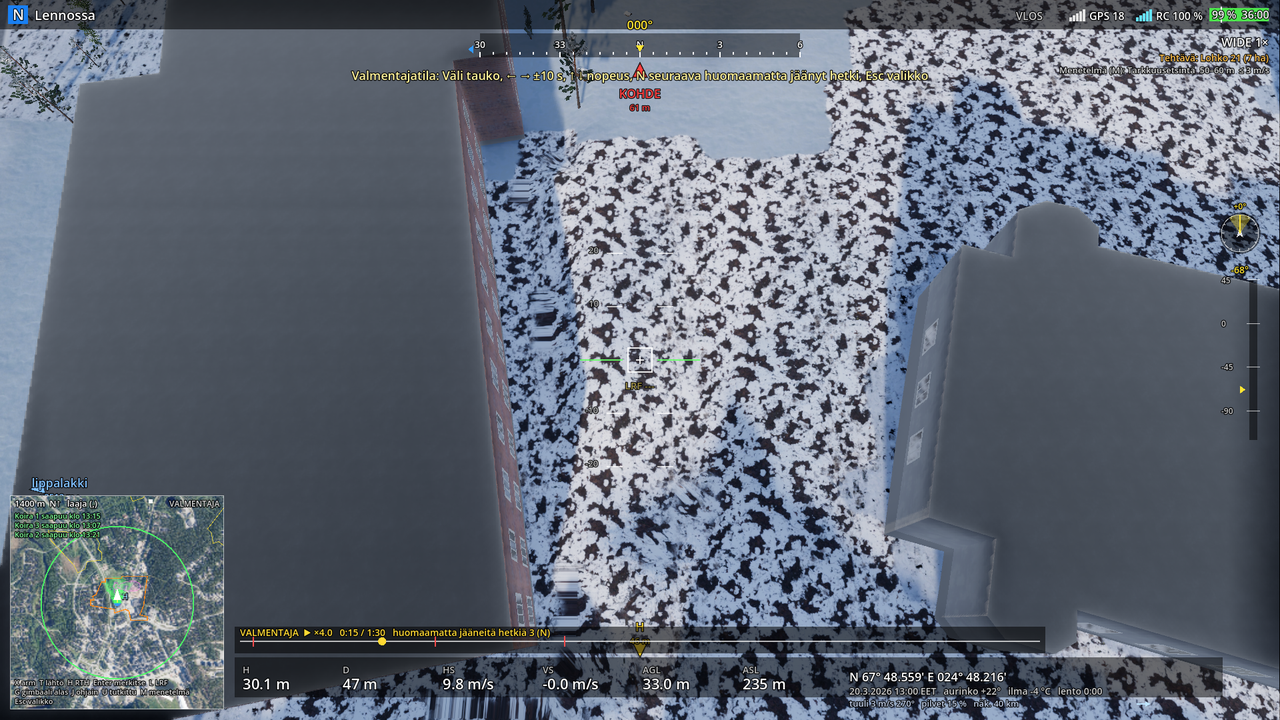
In the game's main menu (at start-up) V opens the list of saved flights: time, terrain package, profile, whether the person was found, length. Enter opens the flight in the same world it was flown in — the same package, the same scenario (seed), the same time of day and season — and replays the aircraft's movement, gimbal, camera and zoom from the log.
During replay the truth is visible: the missing person (red PERSON marker, distance) and the dropped items (blue diamonds) are shown in the picture or as edge arrows, marks appear at the moments they were made, and the green shading on the map builds up as the camera covers the ground. On the timeline at the bottom, the red and blue lines are moments when the missing person or an item was in the picture but was not marked.
| Key | Function |
|---|---|
| Space | pause / play |
| ← / → | −10 s / +10 s |
| ↑ / ↓ | speed ×2 / ÷2 (0.25–16×) |
| Home | to the start |
| N | jump to the next missed moment (3 s before) |
| 1 / 2 / 3, Tab, P, O | the camera and palette can also be changed during replay: "what would it have looked like on the thermal camera" |
| Esc | menu; Q quits |
Use in training: open the flight together right after the debrief, jump from moment to moment with N and look at what was in the picture — often the person was at the edge, in shadow or too far away, and the discussion about flight height, speed and choice of camera starts by itself.
The recordings are on the computer in the user://logs folder (Windows: %APPDATA%\Godot\app_userdata\Support UAS\logs): flight-<aika>.json (10 Hz samples), .meta.json (package, time, launch site, marks), and the GPX and scenario in the Documents folder. A flight from another computer can be viewed by copying these files; the terrain package must be available at the same path.
From the command line: godot --path . ++ --coach=user://logs/flight-<aika>.meta.json.
Calibration: dogs, trails and POD
The main menu's Calibration (instructor) page has all the numbers for dogs, snow trails and probability of detection as sliders. Hover the mouse over a number's name: you see where the current value comes from and what the society is being asked. Above each group is a plain-language result that updates immediately (for example the air-scent range in different winds, or how many hours a trail stays visible). Save writes the changes to the computer (calibration.json), default restores a single number and Restore defaults restores all of them.
The changes apply to the next flights. In coach mode trails and POD are recomputed with the current numbers; dogs replay from the recording as they ran. Each flight's files record which numbers differed from the defaults.
The questionnaire to be sent to the society is docs/calibration/kalibrointi.md; it is generated from the same list (godot --path . ++ --calibration-sheet), so the questions and the simulator's numbers stay the same.
Scent cones and dogs
At the instructor station and in coach mode the minimap shows the scent cones of the missing person and the items in the current wind (purple) and each dog's state ("searching", "on scent", "trailing", "resting", …); parties that have not arrived yet are listed at the top of the map with their arrival times. The after-action map shows the dogs' routes, the missing person's scent cone in the final wind and the dogs' indications. The pilot and the observer do not see the cones. The scent model and the dog's states are described in chapter 19.
Steering the background search (F9)
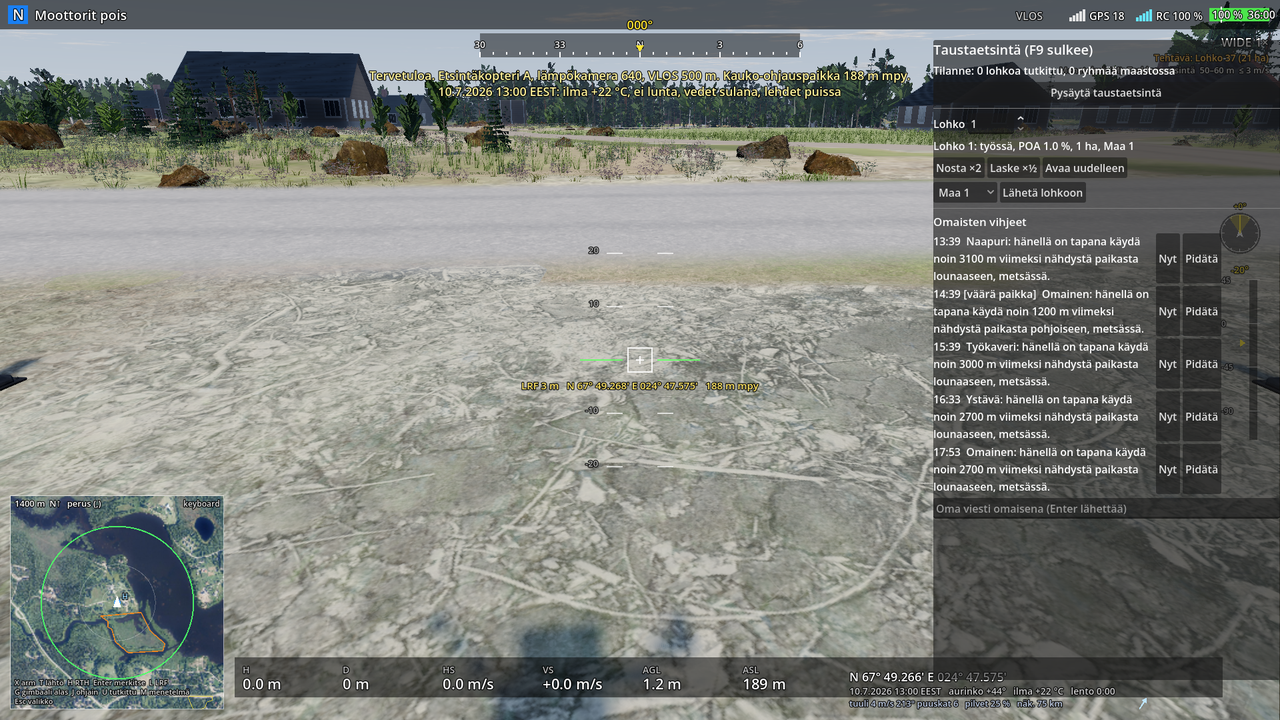
On the instructor station F9 opens the background search panel (phase 9):
- Pause / resume the background search (teams stand still, tips wait).
- Segment: choose a number; its state, probability (POA), area and team show. Raise ×2 / Lower ×½ changes the management's estimate, Reopen puts a searched segment back in the queue.
- Team + Send to segment moves a ground team to the chosen segment.
- Tips from relatives: the coming tips with their times, marked [irrelevant] or [wrong place] when they do not lead to the person. Now sends one at once, Hold keeps it back until released. In the field you can write your own message as a relative.
Every command goes to the host; the pilot and the observer hear the consequences on the radio.
Importing real flights (coming)
The same player will later accept a real flight's log (a flight-log service's CSV, or the report's GPX), so a real search can be reviewed the same way, with the camera's field of view drawn on the map. Real logs are case material: they stay on the user's computer.
Exercise settings on the planning map
| Key | Setting |
|---|---|
| P | the missing person's profile |
| H / Shift+H | missing time ±1 h |
| R | new draw (seed) |
| G | GPS interference during the flight (ATTI drill, chapter 4) — off by default |
| S, [ ] | snow and temperature |
| M | aerial photo / land-cover classes |
| time | + / −, PgUp / PgDn, Home, 1–7 |
The instructor can give the trainees a seed, so that everyone flies the same scenario and the debriefs can be compared.